


Color grading can take regular footage to the next level by making it look consistent. It helps to create a better mood, clarity, and brand presentation in every scene. Pippit offers creators the ability to customize and edit AI-generated videos to achieve a realistic look, with flexible tools to enhance the appearance of their content. Detailed prompts, appropriate visual references, and careful post-generation adjustments are essential to achieving effective results. A color workflow is structured in order to ensure a professional quality from the first frame to the final export.
Understanding the Role of Color Grading in AI Video Production
Color grading is the process of establishing visual continuity by ensuring that various scenes are linked together in a harmonious and controlled way. It sets the tone and creates an emotional, atmospheric, and directional effect on the narrative. Warm colors can be comfortable; cool colors can signify technology or mystery. Correct grading also enables better subject visibility, with contrast, brightness, and colour balance being controlled. There is a cohesive visual treatment that enhances storytelling goals and enhances audience engagement for professional projects. Pippit’s editing options enhance the overall viewing experience, enabling creators to perfect the generated footage. The color choices that are made in videos make them more intentional, memorable, and complete visually.
Seedance 2.5 Features That Support Professional Visual Quality
Pippit’s AI video generator workflow offers advanced creation features for realistic and customizable video generation. The technology produces high-fidelity visuals with detailed subjects, environment, and natural movement. It emulates real-life lighting conditions to create well-balanced scenes with cinematic depth. The platform also allows for cinematic camera movements, enhancing the smoothness of storytelling. Multi-modal reference guidance enables users to provide images, video, and visual examples for more robust guidance. Timestamp-controlled storytelling saves the important moments in the scenes with more accuracy. Green screen refinement offers extra background flexibility post-generation. There is no need for frequent scene changes for connected storytelling because of continuous 30-second scene generation. Pippit’s flexible editing allows you to adjust colors, effects, captioning, and more prior to export.
Planning Videos for Effective Color Grading
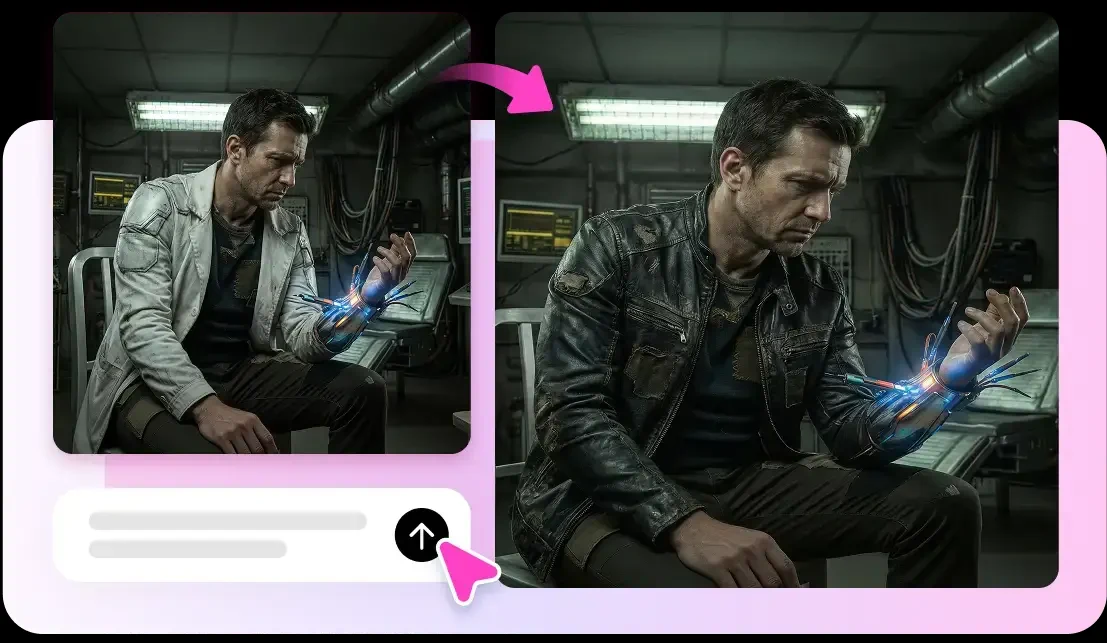
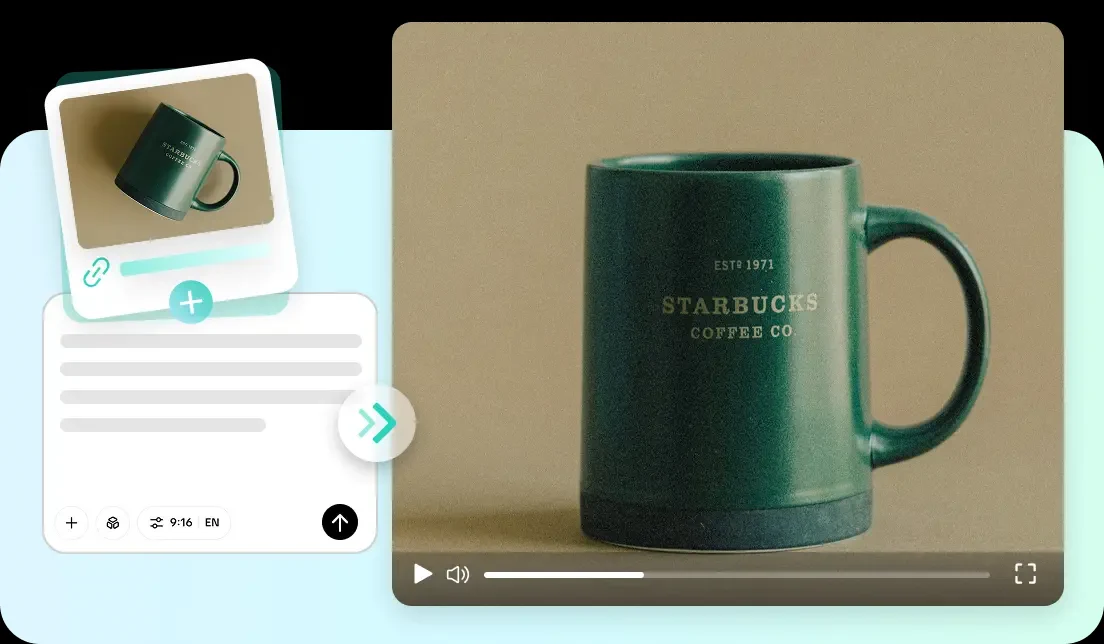
Before developing content, establish a visual direction and how color will complement the message. Seedance 2.5 is designed to assist creators in crafting intentional scenes that, through thoughtful planning, enhance the overall outcome. Get visual themes early to keep a consistent style in production. Use words that describe lighting, setting, viewpoint, and mood. Select complementary locations that will fit with the colors planned. Keep the continuity of the scenes by keeping the subjects, backgrounds, and lighting the same. Color can be inspired by reference images and used to help direct the visual outcome. Clickable instructions using different styles in combination should be avoided, as the visual consistency might be lower if the instructions are unclear. A well-thought-out plan yields a more seamless output in the editing and polishing stage.
Steps to Build Color-Graded Content Professionally with Seedance 2.5
Step 1: Create a professionally styled video
- Sign up for Pippit using your Google, TikTok, or Facebook account details.
- Open the “More” tab and select “Video generator” from the menu.
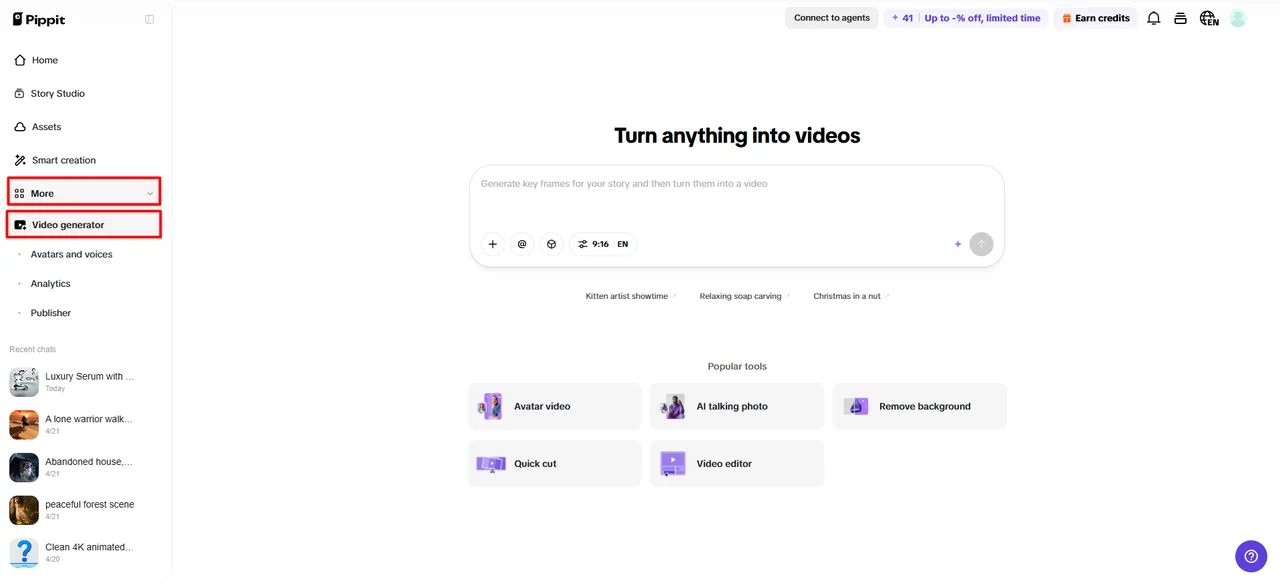
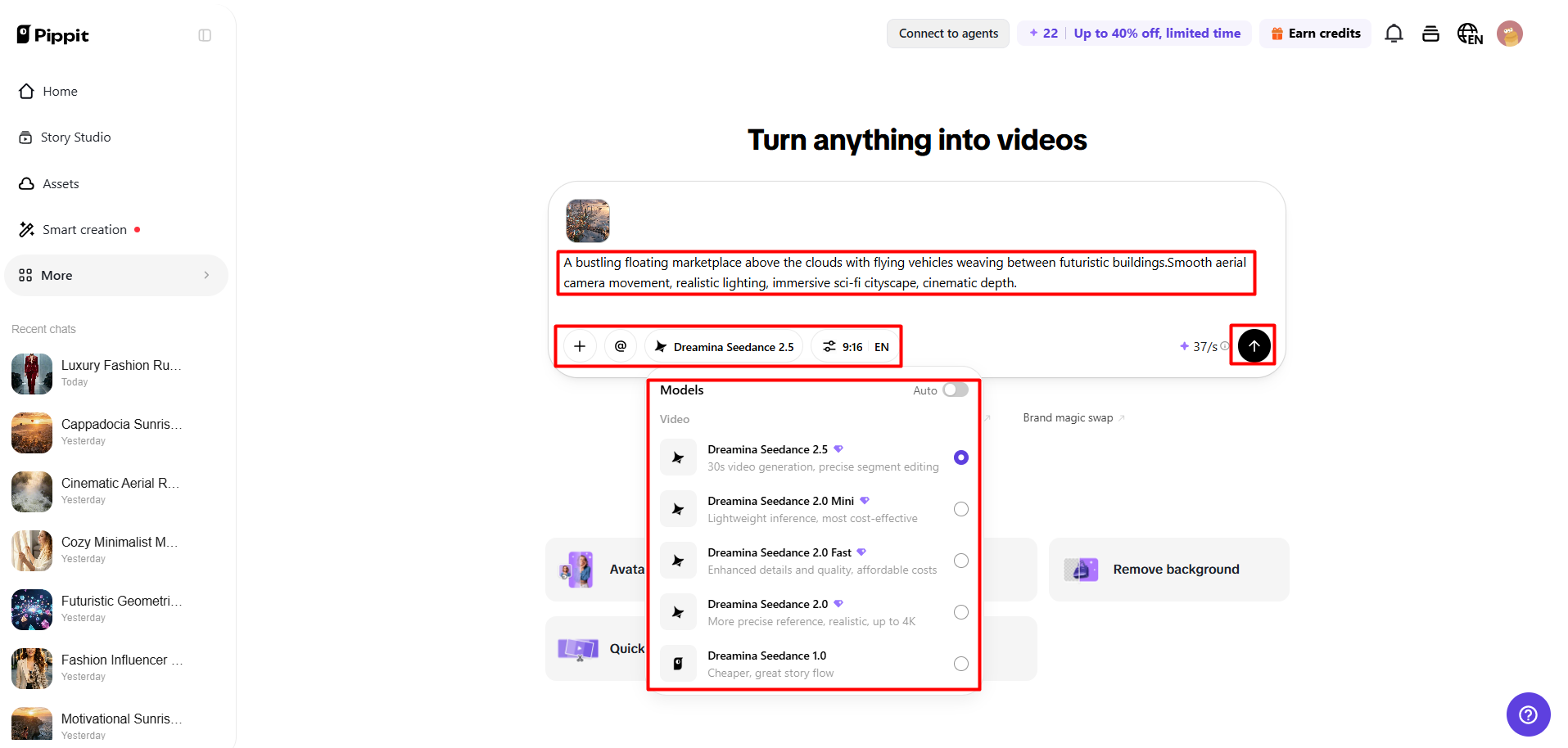
- Choose “Dreamina Seedance 2.5” for professional color-graded videos.
- Write a detailed prompt describing your desired colors, mood, lighting, and visual style.
- Select the video length, language, subtitles, and aspect ratio.
- Click “+” to upload reference images or videos from your device, phone, Dropbox, or a link. You can also use available assets.
- Click “Generate” to create your video.
Step 2: Generate color-enhanced visuals
- After clicking “Generate”, Pippit’s AI video generator creates content based on your prompt and reference media.
- The AI manages transitions, pacing, captions, avatars, voice, lyrics, and visual enhancements while applying your chosen style.
- You will receive a video draft for review.
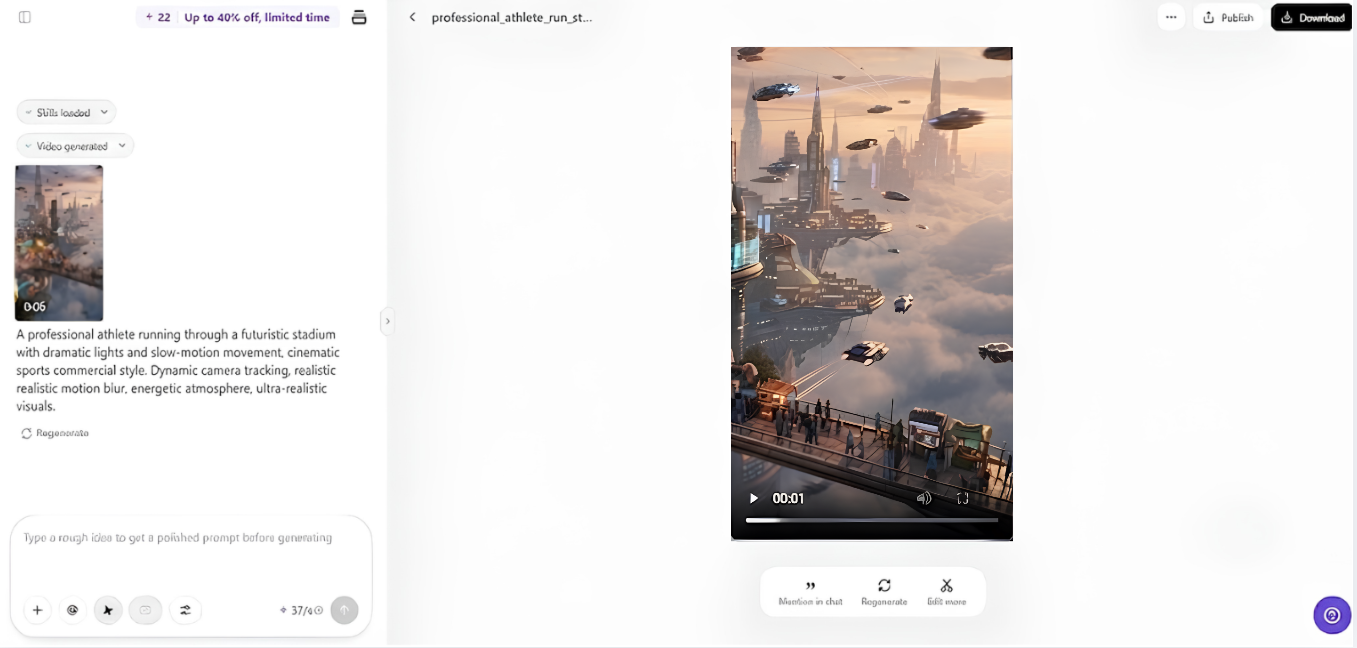
Step 3: Adjust and export final footage
- Click the “Download” tab to save the video. Use “Regenerate” for another result or click “Edit more” to open the editing interface.
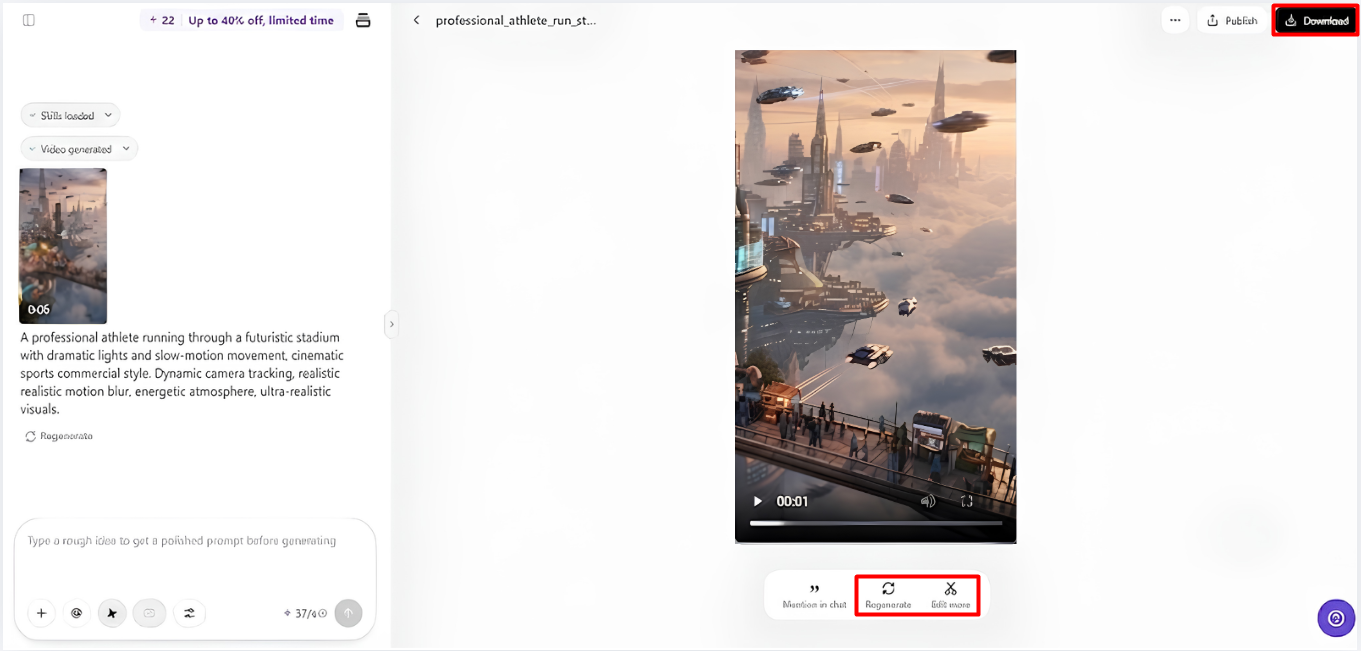
- Edit captions, add text, and adjust size, color, alignment, filters, and effects.
- Add background music, remove backgrounds, and refine visuals.
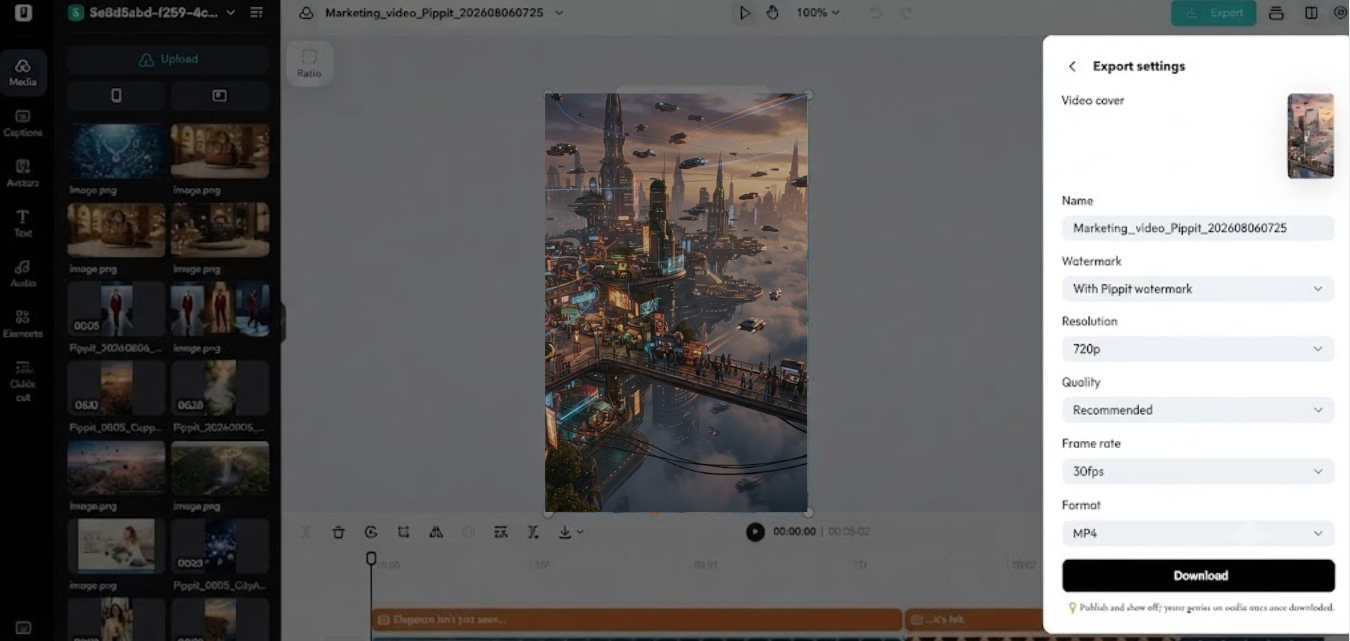
- Click “Export” after completing edits.
- Choose “Publish” for TikTok, Instagram, or Facebook, or click “Download” to save the video with your selected format, resolution, frame rate, and quality.
Building Consistent Color Styles Throughout Every Scene
It’s important to maintain a consistent color style for every scene generated. Ensure even lighting to avoid having bright and dark shots. Use related tones in the full sequence for color harmony. Ensure consistency of character and product appearances to enable easy recognition of important elements. Match foreground and background to produce natural relationships between foreground and background. Don’t use too many abrupt color changes that break up the story. It is important to keep the exposure, contrast, and atmosphere close to the same for smooth scene changes. These practices will help you to make professional videos that are seamless from start to finish.
Color Refinement Practices for Professional AI Videos
- Write prompts that have a visual mood and keep it consistent through scenes.
- Utilize good references of preferred colors, lighting, and visual direction.
- Check lights to see if there are any hot or cold spots or if there are any inconsistencies in exposure.
- Use filters judiciously to aid in the storytelling process rather than to make too many changes.
- Keep the subjects visible with proper contrast and separation.
- Check the final preview for even colors before export.
Editing Visual Elements That Complement Color Grading
When editing visual elements, it enhances the overall presentation. Enhance captions based on the chosen visual style and ensure readability. Adjust text placement, size, and contrast to make text easier to see. Carefully consider backgrounds; they should complement subjects, not distract. Match visual effects with the selected ambiance for smoother experiences. Plan(color) transitions to prevent awkward transitions. There are options to enhance these elements prior to delivery using Pippit editing tools. A full review allows for a professional result; every visual part is checked.
Exporting Professionally Color-Graded AI Videos
When working professionally, you need to choose appropriate resolutions and quality for various publishing applications. Ensure visual consistency when creating videos for websites, social media, ads, or presentations. Create Final Project Files to make future revisions and content changes easier. Before publishing, check the version that was exported to ensure that colors, transitions, and details are correct. Pippit offers flexible export processes that enable creators to ready their videos for various platforms. When you prepare properly, you can ensure that the content you create is of the same quality after it’s published.
Conclusion
With professional color grading, AI video quality is enhanced, fostering more visual consistency, clearer storytelling, and better audience experiences. Pippit offers realistic generation, creation with reference, editing options, and export flexibility, all in one package to facilitate refined video production. A thoughtful workflow allows creators to tweak each scene as they see fit and keep creative control. With careful planning of visuals and balanced adjustments, creators can ensure that their content is engaging and professionally presented.
